You can use a mouse or pointing device to move around and explore the map.
| Re-center the map
|
Navigation element
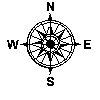
(image may vary)
|
Display the Navigation image, if necessary by clicking
its down-arrow in the
Console.
Click and hold on the Navigation image in the direction
you want to re-center the map. You can click on any
spot on the Navigation image to fine-tune the movement.
|
Pan tool

|
Click on the Pan tool in the
Toolbar, then
click and drag the map to move it.
|
Overview map
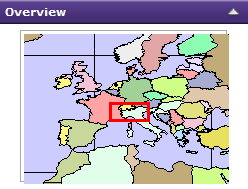 |
In the Console, make
the Overview map
visible. The red rectangle shows the current
map extent. Click inside this rectangle
and drag to move the main map's extent. |
| Zoom in
|
Mouse wheel

|
Scroll the mouse wheel forward or up to zoom in. Each wheel click
will zoom the map by about 50 percent in width and height.
|
Shift+Left mouse

|
Hold the Shift key down, then hold the left mouse
button down and drag to draw a rectangle.
The map will zoom in to the area of the rectangle.
|
Fixed zoom in

|
If available, click on the fixed-zoom-in icon in the
Toolbar.
The map will zoom in on the center of the map.
|
Zoom in tool

|
Click on the zoom-in tool in the
Toolbar, then
- Click once on the map: the map will
zoom in and recenter the map where you click;
OR
- Click and drag to draw a rectangle on the map:
the map will zoom in to the area of the rectangle.
|
| Zoom out |
Mouse wheel
|
Scroll the mouse wheel backward or down to zoom out. Each wheel click
will zoom the map by about 50 percent in width and height.
|
Fixed zoom out
 |
If available, click on the fixed-zoom-out icon in
the Toolbar.
The map will zoom out from the center of the map.
|
Zoom out tool
 |
Click on the zoom-out tool in the
Toolbar, then
- Click once on the map: the map will zoom out
and recenter the map where you click;
OR
- Click and drag to draw a rectangle on the map:
the map will zoom out so that the current
map area will fit into the rectangle drawn.
The smaller the rectangle you draw, the more
the map will zoom out.
|
| Zoom out to full map |
Zoom full extent
 |
Click on the full extent image in
the Toolbar.
The map will zoom all the way out to
the full map extent. |
| Identify features |
Ctrl + Left mouse
|
Hold the Ctrl key down, then click with the
left mouse button on a location. Features at
the location will be found a shown in the
Results window.
|